

The True Power of Twitter – Marketing Essentials
Every site needs a comments section. Well, let me say that differently. Any site where there is new content created on a somewhat normal basis should have a comment section. If your website is basically a sales pitch, a simple website with about 6 pages (Home page, About us, product/service page, contact us, FAQ, Subscribe etc.) it doesn’t need a comment section.
If your website has a blog section, where there is new content added on a normal basis then you should most likely have a comments section if you want to get your readers involved.
When choosing a comment section there are a lot of factors to consider. Here are some things to think about:
- Do you want to use a comment section controlled by a service that people most likely use (Facebook Comments, Google Plus Comments)?
- Do you want to use a service that requires people to sign up for that service (Disqus)?
- Do you want people to sign up for the comments section of your site specifically (WordPress Comments)?
When you know the answer to these questions you will know which comments section is right for you. I chose Facebook Comments so I will explain the process on how to set that up.
The first thing you need to do is get rid of the WordPress Comments section on your site. You need to download and active the “Disable Comments” plugin. Once it is activated, go into settings, choose everywhere, and save the changes.
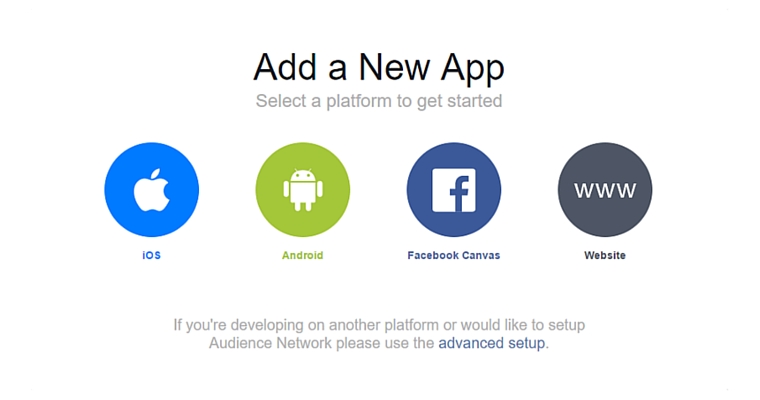
Now you need to download Facebook Comments. After it’s activated go into Settings of the plugin. This is a little complicated so take things slow here. On the right the second option is “Create an app” click this, then on the new page click “Add a new App” choose “website” give it any name that you will remember “Website Comments” and a name space (this must be at least 7 letters, no numbers allowed) so just name it :yoursitecomments” and press create App ID.
You will now be sent to the apps dashboard, which will have the the “App ID” the “API version” and the “App Secret.” Copy paste the App ID into the “Facebook App ID” box in the settings of the plugin. Scroll down to language, and make sure it’s the language you want, choose if you want a dark or light color scheme and then save changes.
The plugin will do the rest of the work, and hopefully there will not be any issues.
One issue with Facebook Comments is that there are notifications when someone posts, so you will either have to scan all of your posts to see if anyone did or go to this link to check if anyone commented. I would advise saving this link as a bookmark so that you can go back every so often to see if anyone commented.
That’s it! You now have a functioning Facebook comments section! Congrats!
Comments
Related posts


